What Happens When You Click "Start Setup Wizard" (A Behind-the-Scenes Look)
Most Shopify apps make you fill out 15 forms before anything works. We thought: what if you just clicked one button? That's how our setup wizard was born — and people keep asking what actually happens in those 2-3 minutes while it runs.
So here's a completely honest, behind-the-scenes look at what our wizard does when you click "Start Setup Wizard." No marketing fluff — just the actual technical steps explained in plain English.
You Click One Button (That's Actually It)
When you first install FunctionalAI from the Shopify App Store, you see this screen:
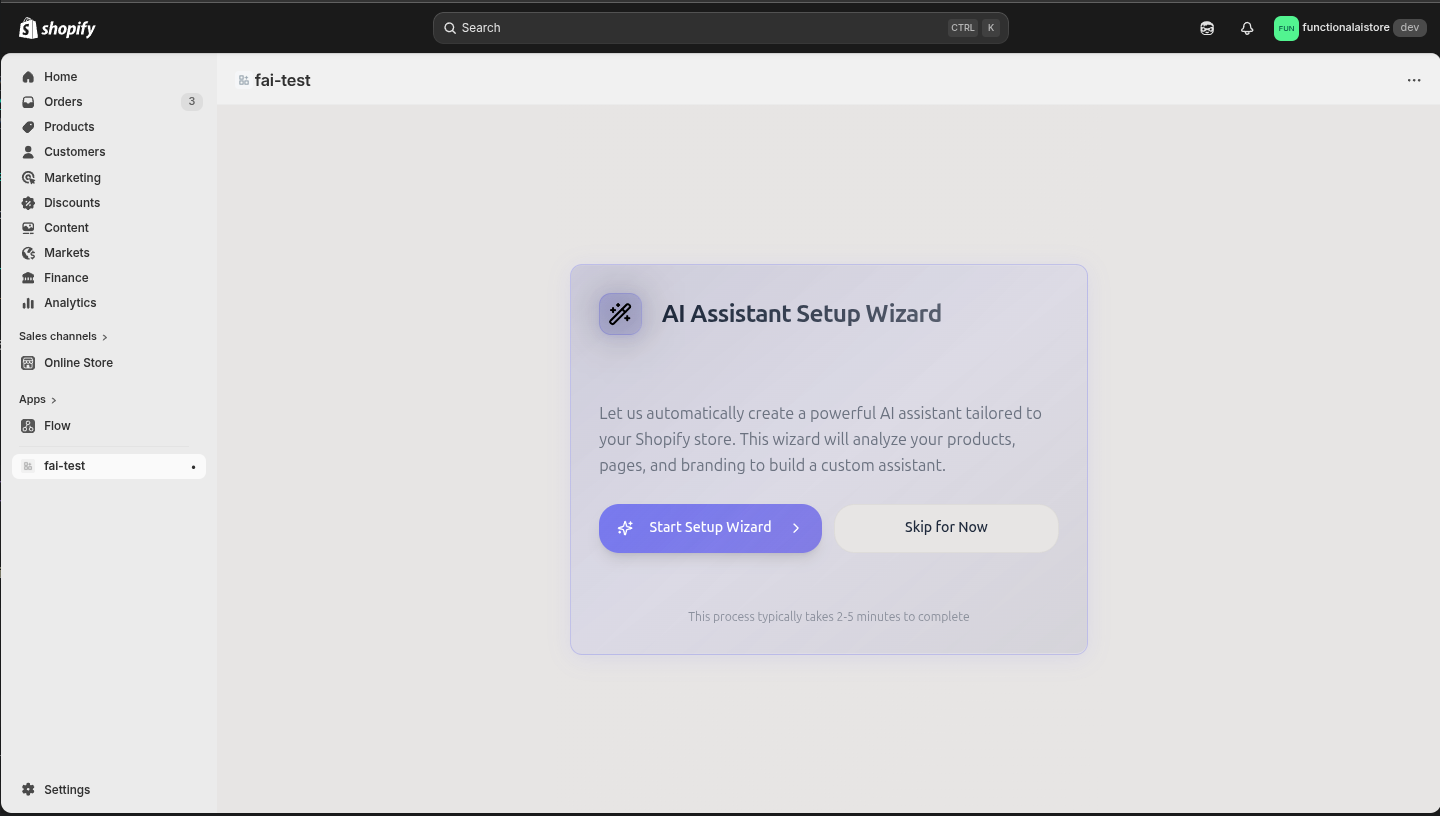
That's it. One button. No "What's your business category?" dropdown. No "Describe your brand voice in 500 characters." Just click and watch it work.
But what's actually happening behind that button? Glad you asked.
Step 1: Fetching Your Store Data
The first thing the wizard does is pull data from your Shopify store. Here's what it grabs:
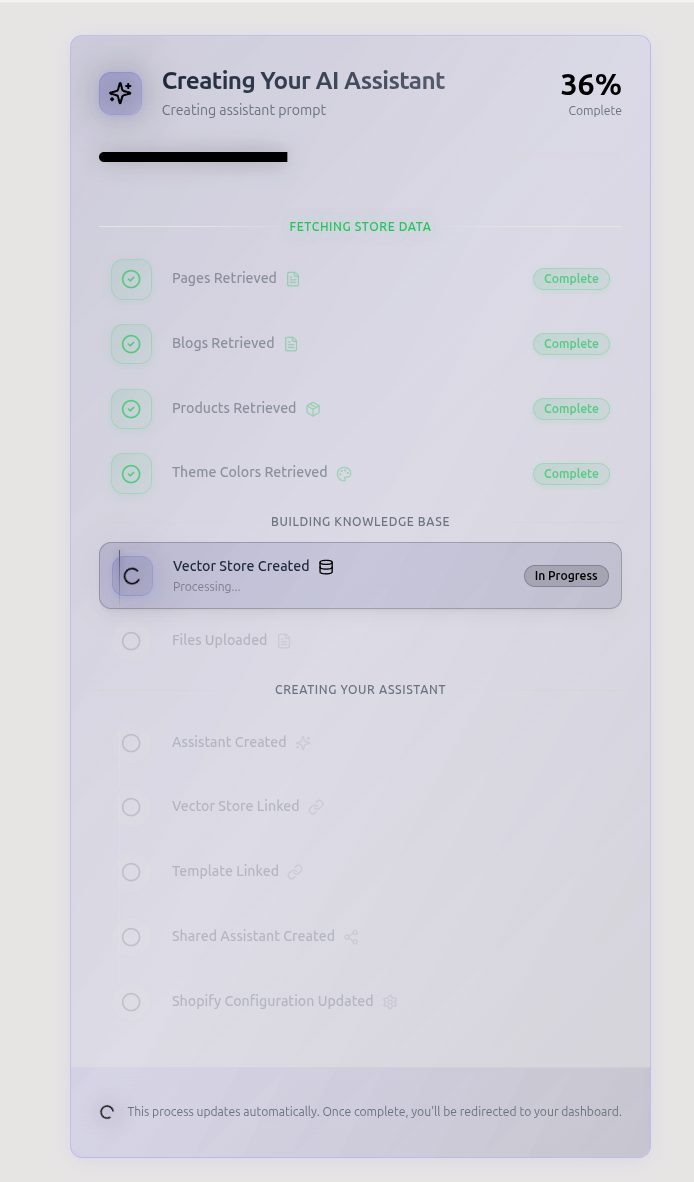
- Products Retrieved: All your products with names, descriptions, prices, images, and variants
- Pages Retrieved: About pages, shipping info, return policy — anything you've published
- Blogs Retrieved: If you have blog posts, those get pulled too (great for FAQs)
- Theme Colors Retrieved: Your store's primary colors so the widget matches your brand
Why this matters:
We fetch your products so the AI can recommend actual items from your catalog when customers ask questions. Not generic answers like "check our product page" — it'll say "Yeah, we have that! Here's the Blue Cotton T-Shirt in Medium for $29.99" with a direct link.
The theme colors? So the chat widget doesn't look like a random popup slapped on your site. It pulls your brand colors and adapts automatically. No manual color picker nonsense.
Pro tip:
The wizard pulls whatever's currently published in your Shopify store. If you have draft products or hidden pages, they won't be included. Make sure your key info pages (shipping, returns, FAQ) are actually published before running the wizard.
Step 2: Building Your Knowledge Base
This is where the AI magic happens. The wizard takes all that store data and creates a "vector store" — which is just a fancy term for a searchable knowledge base.
Here's what happens:
- Vector Store Created: A searchable database optimized for AI retrieval
- Files Uploaded: Your products, pages, and blog posts get converted into a format the AI can understand
What's a vector store?
Think of it as giving your AI a cheat sheet of everything about your store. When a customer asks "Do you ship to Germany?", the AI doesn't just guess — it searches your shipping page, finds the relevant info, and answers based on YOUR actual policies.
This is called RAG (Retrieval-Augmented Generation). The AI retrieves information from your knowledge base before generating an answer. So it's not making stuff up — it's using your data.
Common mistake:
The AI can only answer questions based on the info you give it. If your Shopify product descriptions are just "Great t-shirt!", the AI can't magically know the fabric, care instructions, or sizing. Better product descriptions = better AI answers. Garbage in, garbage out.
Step 3: Creating Your AI Assistant
Now the wizard actually builds your assistant. Here's what gets configured automatically:
- Assistant Created: An OpenAI-powered chatbot configured for e-commerce support
- Vector Store Linked: Connects your knowledge base to the assistant so it can search your data
- Template Linked: Adds pre-built Shopify functions (product search, order lookup)
- Shared Assistant Created: Generates the public-facing chat widget customers will see
- Shopify Configuration Updated: Registers the widget with your store so it works immediately
What's the difference between "Assistant" and "Shared Assistant"?
The "Assistant" is the backend brain — where you configure prompts, temperature settings, and knowledge base connections. The "Shared Assistant" is the public widget customers interact with. Think of it like: one is your kitchen (backend), the other is the dining room (customer-facing).
The wizard sets up both and links them together, so you don't have to mess with technical configs.
What You Get at the End
After 2-3 minutes, the wizard finishes and you have:
- A fully configured AI assistant that knows your products, policies, and brand
- A chat widget that matches your store's colors (no design work needed)
- Pre-built Shopify integrations (product search, order tracking ready to go)
- A knowledge base you can expand by adding more files later
- Everything connected and ready to test — no code, no extra setup steps
From there, you can test it in the dashboard, tweak the prompt if needed, and enable it on your live store when you're ready. But the core setup? Already done.
"What If I Want to Customize After?"
Good news: everything the wizard sets up can be tweaked.
What you can customize:
- Assistant prompt — add specific rules, brand voice, or tone adjustments
- Widget colors — override the auto-detected theme colors if you want
- Knowledge base — upload additional files (return policy PDFs, sizing charts, etc.)
- Function templates — enable/disable integrations like product search or order lookup
- Widget position — change where the chat bubble appears on your store
The wizard just gets you a solid starting point fast. You're not locked into anything.
Pro tip:
Don't tweak everything immediately. Run the wizard, test the default setup for a few days, and see what customers actually ask. Then customize based on real usage patterns. Most stores find the defaults work surprisingly well out of the box.
Being Honest: What the Wizard Can't Do
Let's be real: the wizard gets you 80% there. The last 20% — your specific brand voice, edge cases, unique business rules — that's where you come in.
For example, the wizard can't:
- Write your brand voice for you (it uses a friendly, professional default)
- Handle super niche product questions if the info isn't in your Shopify data
- Configure complex custom workflows (like "if customer asks X, do Y")
- Magically know internal policies that aren't documented anywhere
But here's the thing: most store owners don't need perfect on day one. They need something working that handles "Where's my order?" and "Do you ship to [country]?" so they can stop answering the same questions 50 times a day.
The wizard nails that part. The refinement comes later, based on actual customer conversations.
Why We Built It This Way
We've used other Shopify apps. The onboarding is brutal. Fill out 10 forms, manually upload files, configure settings you don't understand, wait for support to finish setup. It takes hours.
Our philosophy: your Shopify store already has 90% of the information the AI needs. Why make you re-enter it manually?
So we built the wizard to just pull everything automatically, configure it intelligently, and get you to "working chatbot" in under 3 minutes. You can always tweak later. But at least you're not stuck in setup hell for an afternoon.
The TL;DR Version
When you click "Start Setup Wizard," here's what happens:
No forms. No manual uploads. No waiting for support. Just one click and actual automation.
Want to See It in Action?
We have a live demo showing exactly what the wizard builds and how the assistant works with a real Shopify store. Or install from the Shopify App Store and run the wizard yourself — it's free to test (75 messages/month, no credit card).